
JUSTINIAN 2.5.0Several chats, one screen.
Multichat puts up to eight Justinian chats side by side on your computer, and each one works on its own answer at the same time. Run a statute survey in one, draft the memo in another, and check a citation in a third without waiting on any of them.

Open chats side by side
Hover over a chat in the sidebar and click Multichat to open it beside the one you're in, or click the Multichat icon next to New Chat to start a fresh one.
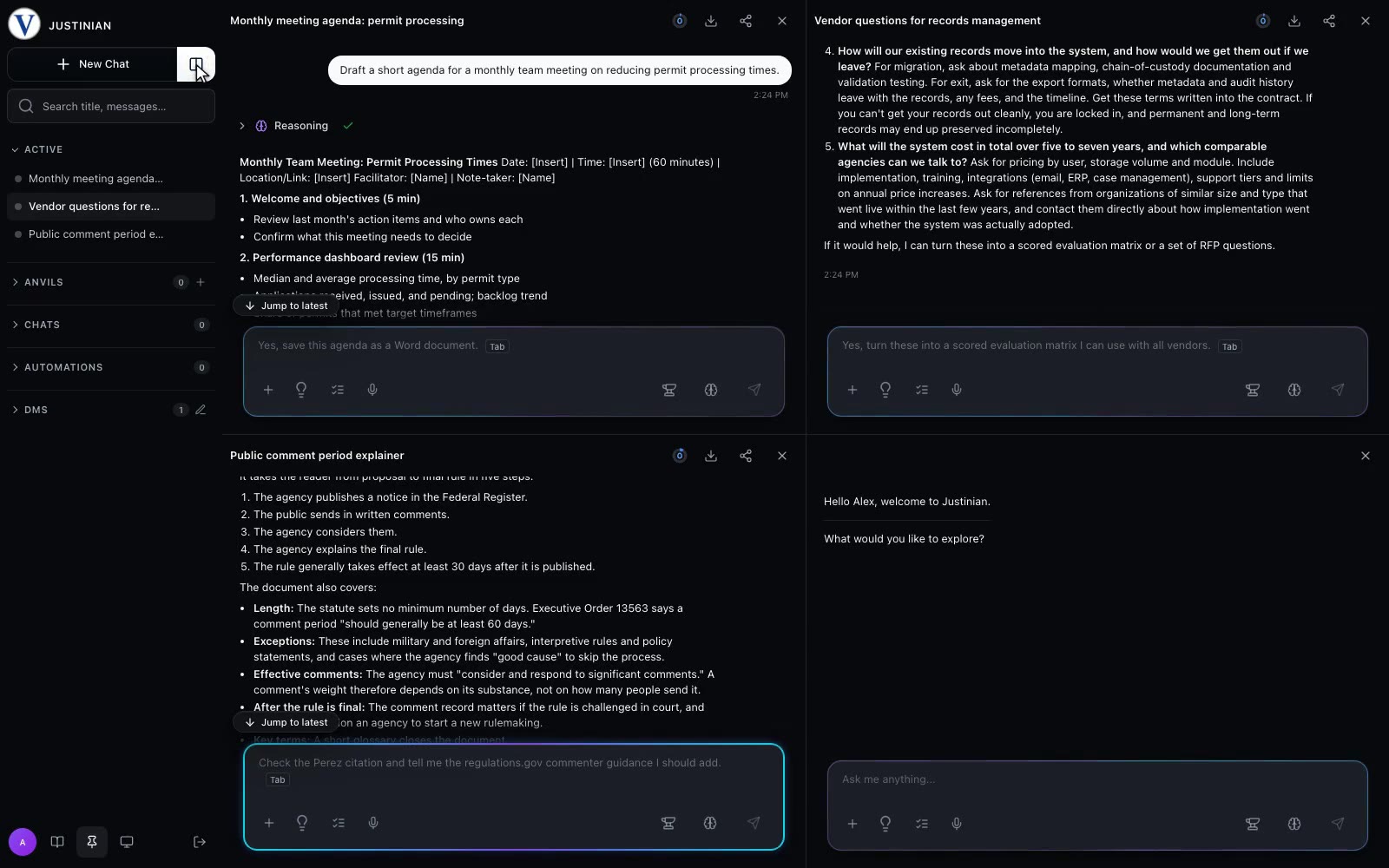
From the sidebar
Hover over any chat in the sidebar and a Multichat button appears beside it. Click it and the chat opens next to the one on screen.
A new chat beside this one
With a chat open, the Multichat icon next to New Chat starts a fresh chat in its own pane beside it.
Up to eight at once
Each pane is a full chat with its own composer, and each one works on its own answer at the same time.
Back to one chat
Leave multichat on any pane and that chat stays open in your sidebar.
On your computer
Multichat is part of Justinian on your desktop or laptop, where there is room for several chats at once.
Resize to fit your work
Drag the line between chats to resize them; double-click it to even them out.
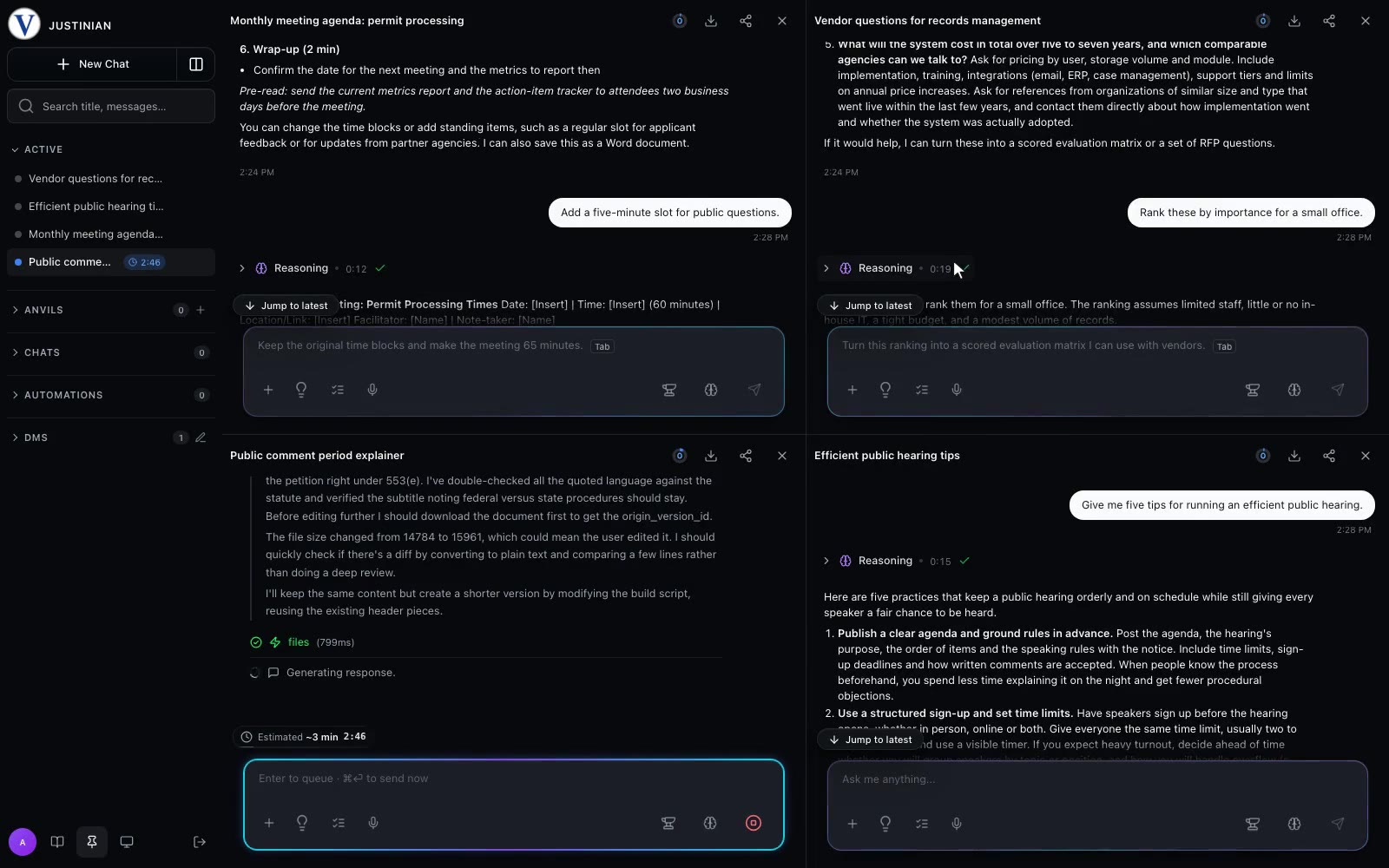
Drag to resize
Drag any divider, between columns or between rows, to give a chat more room.
Double-click to even out
Double-click a divider and the chats along it return to even sizes.
A grid that grows with you
Two or three chats sit side by side. Four form a two-by-two grid, five or six a three-by-two grid, and seven or eight a four-by-two grid.
Bring your Anvils alongside
Anvil channels, in your shared team workspaces, open in Multichat too.
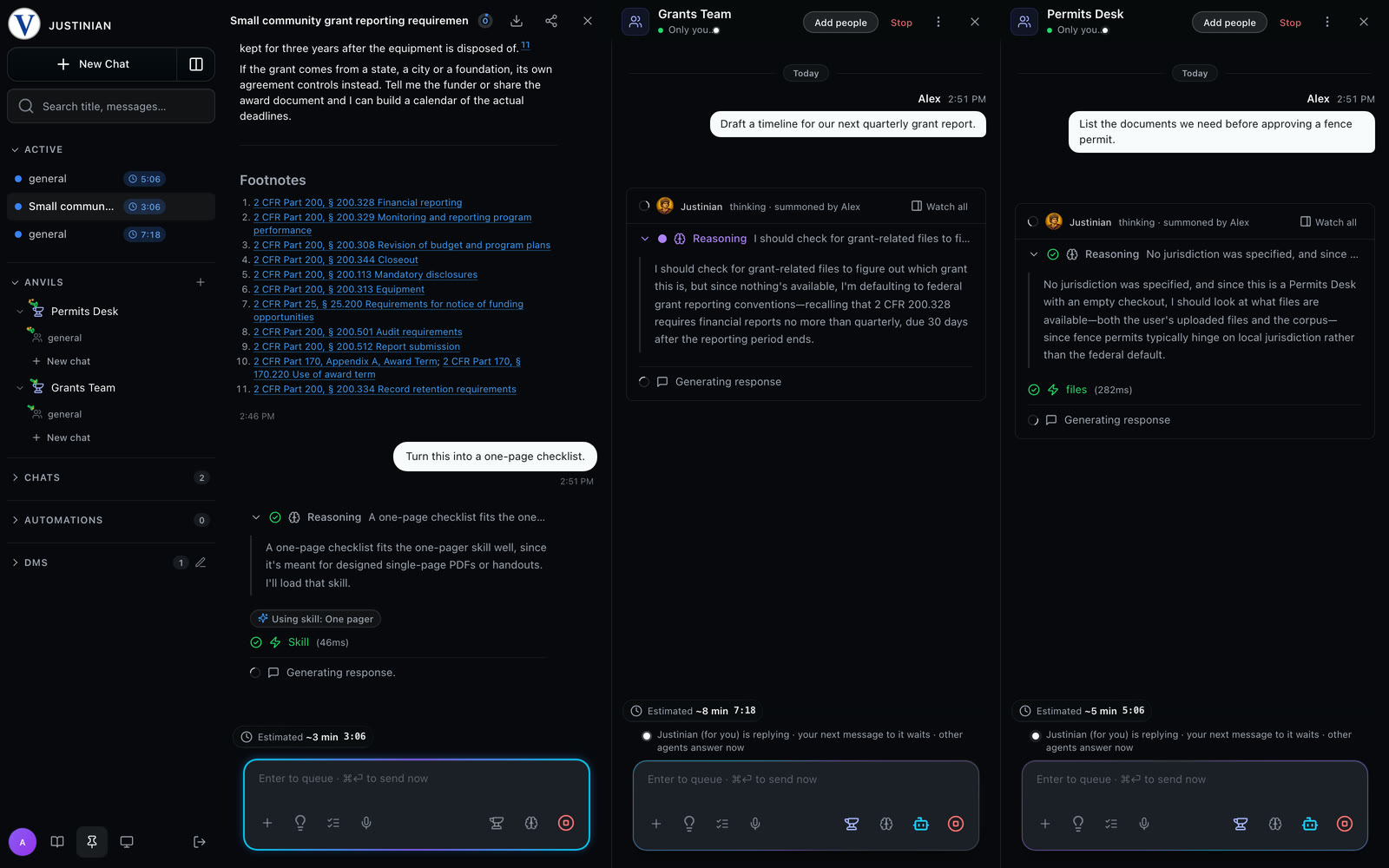
Channels beside your chats
Hover over a channel in the sidebar and click Multichat to put it beside your chat.
All answering at once
Ask in each one and they all answer at the same time, each in its own pane.
Ready to explore?
I am available now in Justinian 2.5.0. Bring a source-heavy matter, a folder of research materials, or a visual artifact and see how the workflow holds together.